
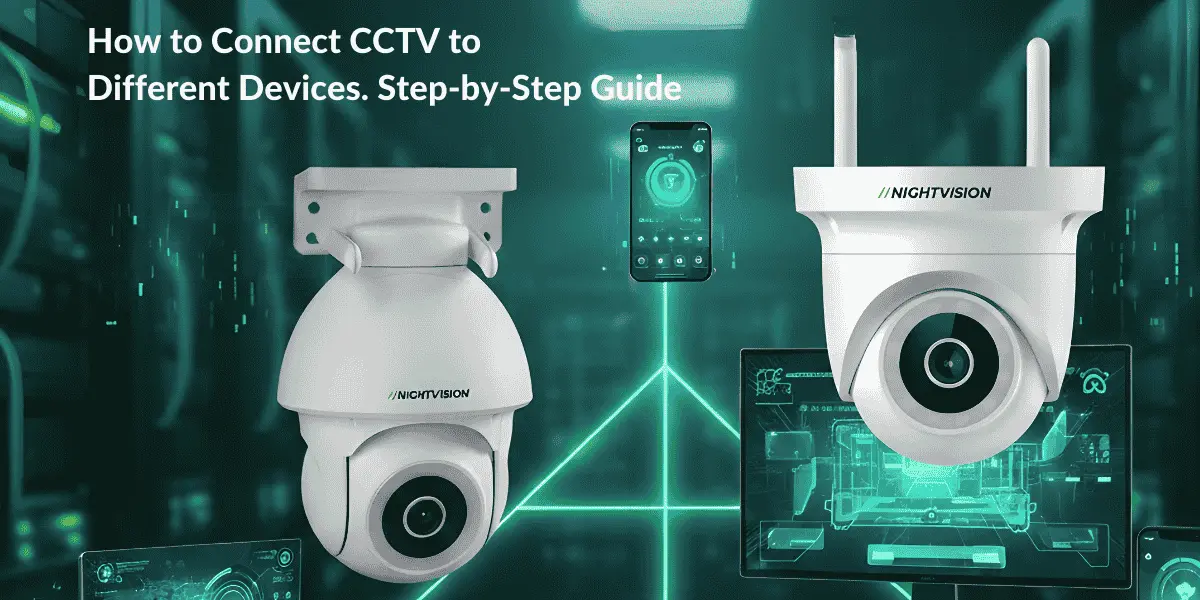
How to Connect CCTV to Different Devices in 2026: Complete Guide
CCTV in 2026 does far more than record footage to a hard drive. Learning how to connect CCTV to different devices means you can check your desired places from a smartphone on the train, pull up your office cameras on a tablet during a meeting, or review footage on your desktop at the end of the day. Getting the most out of a modern CCTV camera connection comes down to knowing your options: an Ethernet or network cable for a direct CCTV connection, WiFi for wireless CCTV access, a mobile app for your phone or tablet, or a browser login using the camera’s IP address.
This guide covers everything you need to connect a CCTV camera to a TV, a smartphone, and a laptop or PC, plus how to fix the most common CCTV connection problems along the way.
Why is it beneficial to connect your CCTV camera to different devices?
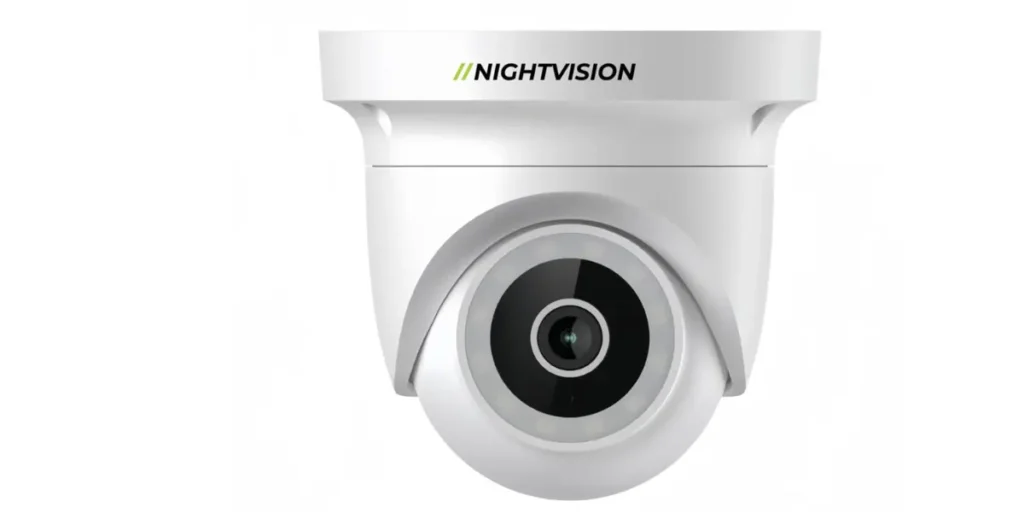
A CCTV camera only does its job properly if you can check it when it matters. Connecting your CCTV camera across multiple devices is what makes that possible. Here’s why it’s worth setting up:
- Instant alerts – get notified the moment unusual activity or motion is detected on your connected CCTV system, so you can act before damage, loss, or theft happens
- Remote CCTV monitoring – watch live footage from a smartphone whether you’re at the office, at home, or somewhere else entirely
- Easy footage sharing – move recordings from one device to another, such as onto a computer, without much hassle
- Real-time decisions – live footage from your connected security camera gives you what you need to act fast, particularly in an emergency
- More control – adjust settings, play back footage, and manage your CCTV camera system directly from your phone
How to connect a CCTV camera to a laptop or PC: a step-by-step guide
Connecting a CCTV camera to a laptop or PC lets you watch live footage, save recordings as digital files, and manage camera settings all from one screen. This applies whether you’re running an indoor model from NV NightVision’s range of indoor security cameras or an outdoor unit from the outdoor security camera range. Here’s how.
How to connect CCTV to a laptop using WiFi?
Connecting your CCTV camera to a PC over WiFi is one of the simplest ways to monitor and manage footage remotely. Here’s the WiFi CCTV connection process:
Step 1: Power and initial setup.
Turn on your camera and connect it to your network. Keep the camera close to the router while you set it up, and use the app to complete the network connection.
Step 2: Verify network.
Check that your laptop and camera are on the same WiFi network.
Step 3: Find the camera’s IP address.
Open your router’s web interface and look through the list of connected devices to find your camera.
Step 4: Access on laptop.
Type the camera’s IP address into a web browser to view the feed.
How to connect a CCTV camera to a PC without an NVR
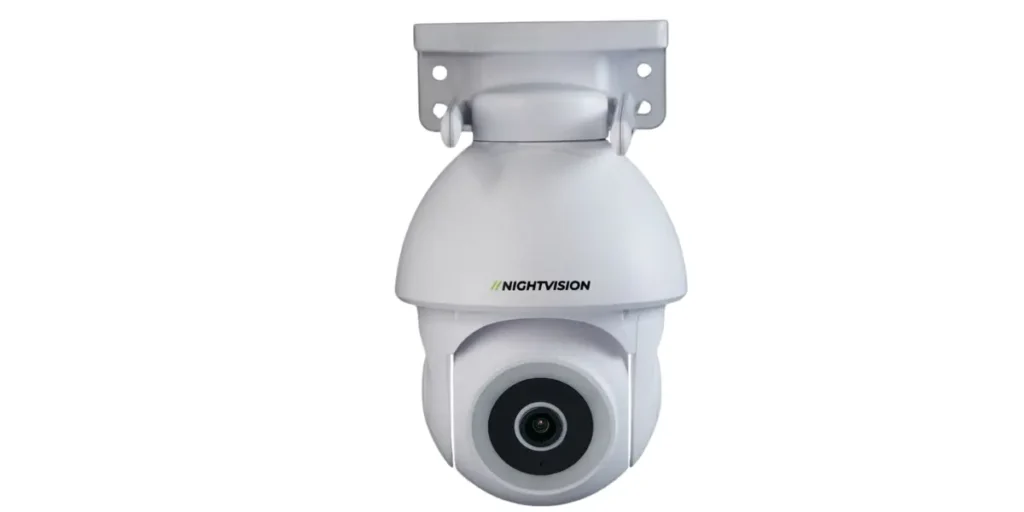
You don’t need an NVR to connect your CCTV camera directly to a computer. This method uses a network connector, a power adapter, and a network cable, and works well with most outdoor-rated cameras like NV NightVision’s T5P-Ratri Bullet Outdoor Wi-Fi CCTV Camera.
Step 1: Charge your camera.
Fully charge it from the power adaptor before you start.
Step 2: Connect the network cable.
Plug one end into the camera’s network connector and the other into your computer.
Step 3: Find the camera’s IP address.
Use the manufacturer’s software to scan for the camera and select its IP address from the list.
Step 4: Match your computer’s IP address.
Open Run, type ncpa.cpl, right-click on Ethernet, choose Properties, select Internet Protocol Version, click Properties, and update the address to match the camera’s network prefix.
How to Connect CCTV Camera System to a PC without a router network?
Setting up your CCTV camera system without going through a router keeps things local and gives you privacy and uninterrupted access to your recordings.
Step 1: Connect all cameras to the NVR.
Hook up the NVR along with your monitor and mouse once your new IP camera system arrives.
Step 2: Start watching.
A setup tool opens once the system starts, letting you view live footage and adjust the basic settings.
Step-by-step guide for connecting CCTV to TV.
Watching a security camera on TV helps you monitor in an easy way. Additionally, it also helps you monitor the live footage on a larger screen. But how can you connect your CCTV camera to your TV? If you follow the right step-by-step procedure, you can easily and smoothly connect your CCTV camera with your TV without any technical issues. The step-wise procedure is given below:
How to Connect a CCTV Camera to a TV with an NVR
Connecting your CCTV camera to your TV is one of the easiest ways of viewing your camera’s footage. It is because you can view your camera’s footage directly on your TV screen with the help of an NVR. To connect your CCTV camera with your TV with the help of an NVR, you need an HDMI cable, an Ethernet cable, an NVR, and a power adapter. The step-by-step procedure is given below.
- Step 1: Connect the camera to the NVR:Plug the CCTV camera into the NVR (Network video recorder) using an Ethernet cable.
- Step 2: Connect NVR to TV:Connect one end of the HDMI cable into the NVR and another end into the HDMI input of the TV.
- Step 3: Power on Devices:Plug the NVR into a power source and turn on the television.
- Step 4: Select TV Input: Use the TV remote to set it to the HDMI input.
- Step 5: Configure and View:The display of the NVR will be shown on the TV screen. Browse the setup menu and set up the camera configuration by using a USB mouse to view the live video on TV.
How to Connect CCTV to TV Wirelessly?
Many people are facing problems with the wire while connecting the CCTV camera to the TV. To overcome these problems, you can use modern security cameras such as the Ratri G11 camera and Netra V6Z Camera, as they offer seamless TV connectivity. But, how can you connect CCTV to TV wirelessly? The following are the essential steps for it.
- Step 1: Connect your security camera to WiFi:Ensure that your security camera is connected to the WiFi network.
- Step 2: Turn on your smart TV:Turn on your smart TV to process the steps further.
- Step 3: Download the camera app:Access the TV’s app store, find out the camera’s brand apps and download it.
- Step 4: Set Up the Camera on TV:Open the application and follow the instructions on the screen to incorporate your camera.
How to connect a CCTV camera to your phone: step-by-step
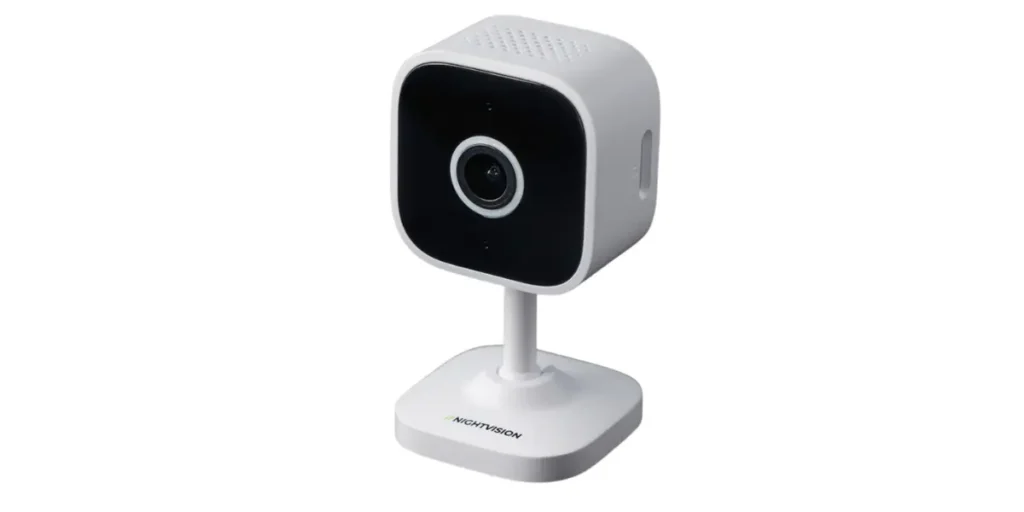
Connecting a CCTV camera to your phone is one of the more useful things a modern CCTV camera connection does, since it means you can check in on a location from wherever you are. The exact steps depend a little on your camera’s model, but the general process for CCTV to phone connection looks like this.
How to connect a CCTV camera to a phone via WiFi?
Connecting a CCTV camera to your smartphone can be achieved in different ways, based on your camera’s model and features. A stable WiFi connection and the appropriate mobile application are important for successful setup and remote monitoring. Below is the step-by-step process for it.
Step 1: Ensure WiFi connectivity:
Make sure that your CCTV camera is compatible with WiFi connectivity.
Step 2: Install Mobile App:
Download the specific mobile applications from the App Store and Google Play that are required to see the footage from smartphones.
Step 3: Configure Camera Settings:
Launch the app and adhere to the prompt given in the application to set up the camera configuration. While configuring, connect it to your WiFi network for the visibility of live footage.
Step 4: Pair with Smartphone:
Use the QR code or secure code to pair your CCTV camera with your smartphone.
Also Read:
How to connect a night vision CCTV camera to a mobile app?
Smart security cameras compatible with Google Home and Alexa
Common problems when connecting CCTV to different devices
Many people connect CCTV cameras with different devices to continuously monitor and provide information about the desired place. While connecting the camera to different devices, many problems may arise that can lead to poor video quality, connectivity issues, and an inability to access footage remotely. The common problems include:
- Connectivity issue: Issues caused by wrong cable type, loose connection, incorrect port selection and router/firewall blocking IP camera leads to difficulty in accessing the camera remotely.
- Power Problems:Insufficient voltage, faulty power connection or using passive PoE (power over Ethernet) results in the CCTV camera not turning on.
- Software / Compatibility Issues:Using an incompatible operating system or app version, or using software that is designed for different brands, can cause problems with the camera not being detected.
- Authentication / Login Issues: Entering the wrong username or password, or failing to follow proper security protocols, will prevent you from logging into the device remotely.
- Mobile App / Cloud Access Problems:Scanning wrong QR codes, entering an inappropriate login password and poor internet connectivity result in the inability to view live footage.
Tips for fixing CCTV connection problems
While connecting the CCTV camera to various other devices, issues may arise. These issues can cause the live footage to be unavailable or the video quality to degrade. For smooth connectivity, reliable video monitoring with clear video quality, some tips need to be applied, which are:
- Reboot Everything:Restart all the devices (CCTV camera, NVR/DVR and your router) to resolve temporary glitches/issues.
- Check Power Supply:Ensure that your CCTV is not having problems like a loose power cord.
- Update Firmware/Software: Ensure timely updates for your CCTV camera and NVR software to avoid incompatibility issues.
- Check Input Sources: For using a TV or monitor, make sure that they are connected to the right HDMI or VGA source.
- Inspect Cables:Inspect the coaxial or Ethernet cable to check whether it is damaged, bent, or corroded.
Getting the most from your connected CCTV system
Connecting CCTV to different devices in 2026 is easier than it used to be, thanks to better networking, more user-friendly apps, and cloud-based systems. Once your CCTV camera connection is set up properly, you get real-time video, instant alerts, and access from anywhere, without much ongoing effort. NV NightVision’s full range of security cameras supports smartphones, tablets, and computers, so you can stay connected to your property whenever you need to.
This guide has covered how to connect your CCTV camera to a TV, smartphone, and laptop or PC. For more on getting the most from your CCTV camera system, check out our guide to Australia’s best security cameras, and if you’re after a reliable CCTV camera in Australia, browse the NV NightVision shop.
FAQ on How to Connect CCTV to Different Devices
Can CCTV be connected to two phones?
Yes. Most WiFi-enabled cameras, including NV NightVision’s outdoor and indoor ranges, can connect to more than two phones at once, either by using the same account on multiple devices or by sharing access through the app.
How do I connect CCTV to several TVs?
Use an HDMI splitter for short distances or HDMI-over-Ethernet extenders for longer runs. Connect the TVs to the same network and use decoders to transmit footage across IP networks.
How do I connect CCTV to different devices wirelessly?
You’ll need a WiFi-compatible camera, the right manufacturer app, and a network set up to send video to smartphones, computers, or smart TVs.
Can I connect a CCTV camera to my phone without WiFi?
Not for live viewing, since that relies on a network connection. Some cameras still record locally to an SD card even without WiFi, and you can review that footage later once you’re back on the network.
Do I need an NVR to connect CCTV to a TV?
No, not always. An NVR makes the process simpler and supports multiple cameras at once, but WiFi-enabled cameras can often connect to a smart TV directly through the manufacturer’s app instead.
Can I view CCTV footage through Google Home or Alexa?
Some models support Google Assistant and Alexa integration, letting you pull up live feeds on compatible smart displays using voice commands. See our guide to smart-home compatible cameras for specific models.
Why isn’t my CCTV camera showing up on my computer?
Usually it comes down to a cable or driver issue, a mismatched IP address range between the camera and computer, or a firewall blocking the connection. Working through each of these in turn usually finds the fault.
Can I connect an older CCTV camera to a modern smart TV?
Yes, in most cases, though older analogue cameras generally need an NVR or DVR with an HDMI output as a go-between, since they won’t connect to a smart TV’s app store directly the way newer WiFi cameras do.
Do I need a subscription to connect and monitor my CCTV camera remotely?
No, not with a camera that supports local SD storage. Remote monitoring and app access work without a subscription on most modern WiFi CCTV cameras, including subscription-free models in the NV NightVision range.


Add a review
Your email address will not be published. Required fields are marked *