
How to connect a night vision CCTV camera to a mobile app?
Night vision CCTV cameras play an important role in home and business security across Australia, especially for monitoring properties after dark. You not only have to be safe from human intruders, but in the outback, you also need to be wary of the wildlife. When connected to the mobile app, these night vision cameras allow you to check live footage, receive motion alerts, and manage camera settings directly from the smartphone. But to do this, you need to know how to connect a night vision CCTV camera to a mobile app. For many users, setting up CCTV cameras with mobile apps can be confusing. This is exactly what we are here to clarify.
In this guide, we explain how you can connect a Night Vision CCTV camera to a mobile app step-by-step. We cover aspects such as downloading the correct app, connecting the camera to Wi-Fi or router, configuring the right settings, and more.
How to connect a night vision cctv camera to a mobile app?
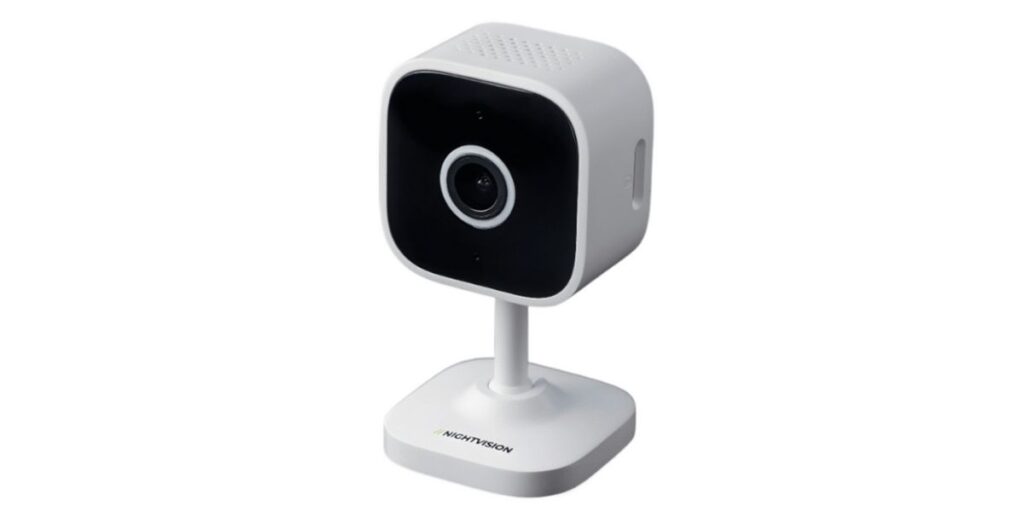
Connecting a night vision CCTV camera to a mobile app usually takes only a few minutes when each step is followed correctly. While the exact screens may differ slightly depending on the brand, the overall process remains the same for most cameras used in Australian homes and businesses. Following is a guide on How to connect a night vision cctv camera to a mobile app.
Download the Correct Mobile App
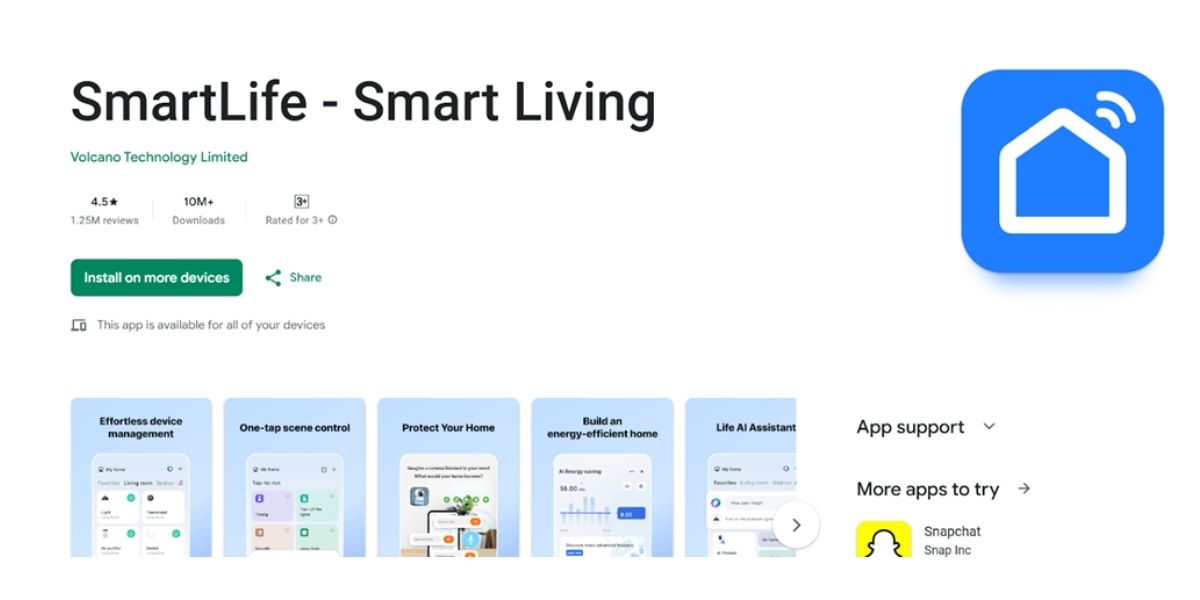
Night Vision CCTV comes with its own remote viewing app. To download the app, you can visit the Apple App Store or Google Play Store and search for “Smart Life-Smart Living”. Ensure that the name of the app is exactly as we have stated before in order to avoid downloading an incorrect app.
Power and Connect the Camera
The installation of the application is followed by powering up and connecting the camera. Plug the camera into a power source with the help of the adapter that came with the camera. In the case of outdoor camera installations, the power connection should be secured in a manner that is environmentally sealed so as to conform to local power supply safety standards.
Connecting to Wi-Fi or a router
You can connect the camera, depending on what it is, either to your Wi-Fi connection or via an Ethernet cable to your router. Most wireless cameras need a steady 2.4 GHz Wi-Fi connection, which is usually provided by Australian home routers.
Indicator Light
Our cameras come with LED lights to indicate connection status. The blinking of an LED light is an indication that the camera is ready to be connected, while a steady light indicates a successful connection. Refer to the user manual for the exact light behaviour, as this can vary by brand. Add the Camera to the App
After powering the camera, open the mobile app to add the device.
Creating or logging into an account
Our CCTV app requires you to create an account using an email address. If you already have an account, you simply need to sign in. Manually adding the device or scanning via a QR code.
In the app, choose the option for adding a new device. Some camera models enable you to scan a QR code shown on the camera or its packaging, whereas in other models, you have to manually key in the device ID.
Entering Wi-Fi passwords
Type in your Wi-Fi SSID and passcode when asked. Please make sure that the phone is close to the camera during the process. The camera should now be online when viewed within the app.
Configuring Night Vision Settings
With the camera properly connected, one needs to configure the night vision settings. Get access to the camera settings on the app and turn on the infrared night vision or smart night mode. The smart night mode feature allows the device to switch from colour mode to infrared mode depending on the lighting conditions.
Sensitivity
You can change motion sensitivity, IR intensity, and brightness to adapt to your environment. This will allow you to eliminate false alarms produced by insects, cars, and changing lighting conditions.
Common Problems and How to Fix Them
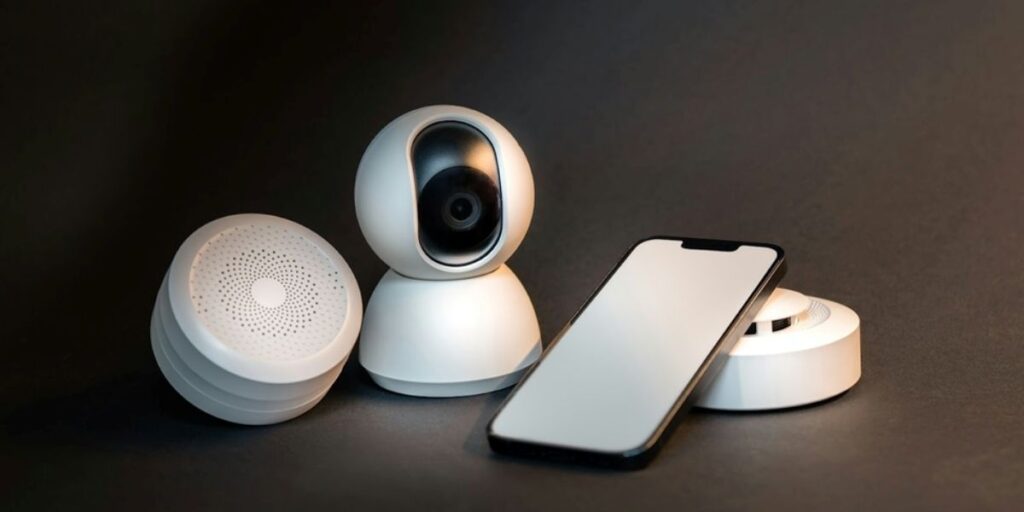
Even with the proper setup of Night Vision CCTV cameras, sometimes CCTV cameras can experience connection or performance issues. Despite this, most of these issues are relatively simple to resolve using only a few checks. Some of the most prevalent issues and their resolutions include the following:
Camera Not Going Online
If the camera is also showing as offline within the mobile application, begin by looking at the connectivity to the power source. Verify the camera is properly connected to the wall plug and that the plug is functioning. Next, reset both the camera and your internet modem, as sometimes network connectivity can cause both the modem and cameras to become offline. Then, make sure your internet is on and functioning properly. Most likely, your cameras connect to 2.4 GHz networks. To check if this is the case, see if the camera is connecting to the 5 GHz network instead of the 2.4 GHz network. Restart the camera and reconnect it through the app if the above issue has been fixed.
App Not Detecting the Camera
If the app has problems finding the camera during setup, make sure that the camera is in pairing or setup mode. This is normally denoted by the light flashing. If the light is not flashing, the camera will need to be reset.
Also, ensure that you are using the right mobile application as advised by the manufacturer. Your phone should remain near the camera when preparing the setup, and the mobile data should be turned off to ensure that the application uses Wi-Fi.
Night Vision Not Turning On
If the night vision feature will not turn on, check using the app that IR Night Vision or Smart Night Vision is turned on for the camera. It may occasionally revert to a Manual mode instead of being an Auto mode.
It is also advisable not to fix reflective surfaces, such as walls or glass, near the camera lens, as this could affect the infrared rays. Testing the device in low-light conditions will ensure that the night vision functionality is functioning properly.
Slow or Lagging Video Feed
In most cases, poor bandwidth is the reason for delay or slow motion on video. Checking the internet speed and limiting the devices connected to the network might help. Moving the camera near the router and using a wired connection might provide improvements. In-app video resolution or frame rate may be lowered to reduce lag, especially for remote viewing. Periodic firmware updates of the camera and the mobile app contribute a lot to stable performance.
Conclusion
Connecting a Night Vision CCTV camera to a mobile app is easy, provided one follows the steps in the right order. Beginning with the installation of the appropriate app and linking the camera to adjusting night vision settings, an effective configuration guarantees dependable surveillance during both day and night. So for homes and businesses in Australia, especially with regard to areas that have low light, remote locations, and critical activity of wildlife, having access to CCTV cameras remotely adds an extra layer of security. Once connected, your camera allows you to stay informed, respond quickly to alerts, and monitor your property from anywhere using your smartphone.
As one of the best CCTV cameras in Australia, Night Vision provides you with some of the best night vision cameras with a robust build and a seamless app. This ensures that you can stay connected with your surveillance system regardless of where you are. If you seek further information regarding CCTV cameras, you can also check out some of our other blogs as well. Thank you for reading till the end.
FAQs on Connecting CCTV Cameras to Night Vision App.
Can I connect a night vision CCTV camera to my mobile phone without the internet?
You can view live footage locally without the internet if your camera and phone are connected to the same Wi-Fi network. However, to access the camera remotely, receive alerts, and view recordings when you are away from the property, an active internet connection is required.
Does a night vision CCTV camera work on both Android and iOS?
True, most night vision models from a CCTV camera manufacturer will be compatible with both Android and iOS systems via their respective mobile applications. You would only need to download the right app from either the Google Play Store or the Apple App Store, based on the brand of your camera model.
Why is a 2.4 GHz Wi-Fi connection necessary in my camcorder when 5 GHz is available?
Most CCTV cameras are optimised to work on the 2.4 GHz Wi-Fi frequency, as range and connectivity are much better. Most domestic Wi-Fi routers in Australian homes are dual-band and work at 2.4 GHz and 5 GHz. The Wi-Fi camera needs to be connected to the 2.4 GHz network.
Can multiple smartphones connect to a single night vision CCTV camera?
Indeed, yes, most CCTV apps allow more than one user to view the same camera. It is made easier to do so through the application’s sharing or device management features, so you can grant access to your family members or employees.


Add a review
Your email address will not be published. Required fields are marked *